How to Create Scroll-Stopping App Store Screenshots
Practical strategies to design app screenshots that capture attention, communicate value, and support store-page testing.
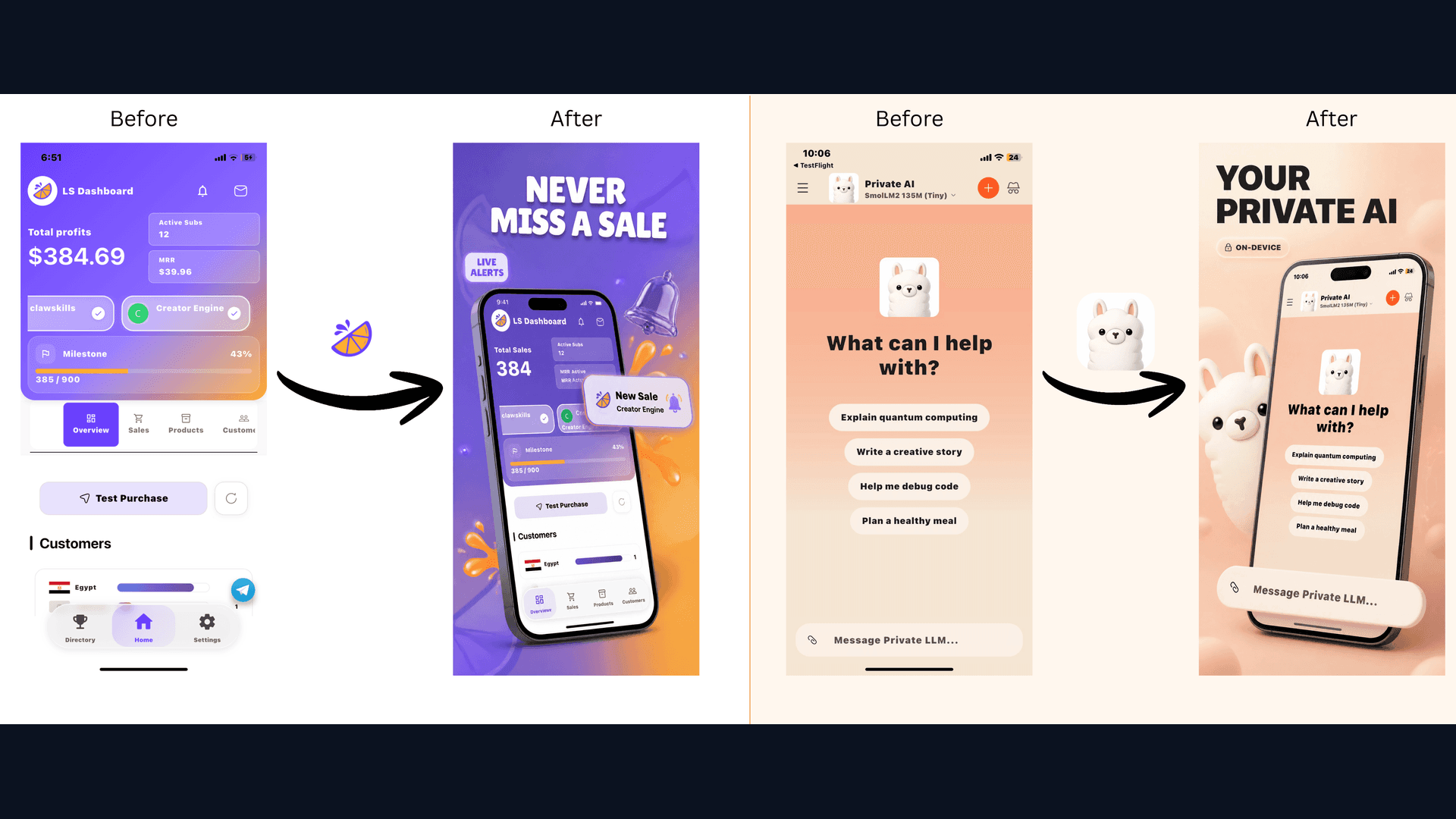
People scan store pages quickly, so your first screenshots need to communicate the product and audience clearly. Here is a practical framework for improving that first impression and testing the result.
Make the First Frame Easy to Scan
Your first screenshot should answer three questions clearly:
- What does this app do? (Category clarity)
- Why do I need it? (Value proposition)
- Is it professional? (Quality trust signal)
If any answer is unclear, revise the message, product UI, or visual hierarchy.
Visual Psychology Principles
1. Create a Clear Visual Path
Use spacing, contrast, and alignment to guide the eye from the headline to the supporting product UI. There is no universal reading path, so review the composition at the size people will actually see in the store.
2. Color Psychology for App Categories
Finance apps: Blue, green (trust, growth)
Fitness apps: Red, orange (energy, action)
Productivity: White, blue (clarity, focus)
Social apps: Purple, pink (creativity, connection)
Games: Bright, contrasting colors (excitement)
The WowShots approach: AI can suggest color palettes based on your app category and icon colors; review the result against your brand and accessibility needs.
3. Contrast & Hierarchy
The rule: If everything is emphasized, nothing is emphasized.
Hierarchy structure:
- Headline (largest, boldest)
- App screenshot (primary visual)
- Subtext or feature callouts (smaller)
- Background elements (subtle, supporting)
Contrast techniques:
- Light text on dark screenshots (or vice versa)
- Bold vs. regular font weights
- High-contrast accent colors for CTAs
- Blurred or gradient backgrounds to pop foreground
Copywriting for Screenshots
Headline Formulas That Convert
The "Instant Gratification" Formula:
"[Benefit] in [Time/effort]"
- "Track expenses in 2 taps"
- "Learn Spanish in 10 min/day"
- "Get fit with 15-min workouts"
The "Without" Formula:
"[Benefit] without [Pain point]"
- "Budget without spreadsheets"
- "Chat without distractions"
- "Edit photos without Photoshop"
The "Results" Formula:
"[Action] [specific, supportable outcome]"
- "See your weekly budget at a glance"
- "Build a consistent training routine"
- "Plan meals around your schedule"
The "Identity" Formula:
"For [Target user] who [Goal]"
- "For freelancers who hate accounting"
- "For runners training for their first marathon"
- "For parents managing chaos"
Keep Headlines Readable
App Store screenshots are viewed on small screens. There is no universal character limit for every design, so use a short headline, check it at thumbnail size, and test longer copy only when it remains legible.
Before: "The best productivity app for managing all your tasks and projects efficiently"
After: "Organize your life in 5 minutes daily"
Character counts:
- 30 characters: Very safe, highly readable
- 40 characters: Safe, punchy
- Longer headlines: Test carefully for readability and truncation
Power Words That Drive Action
Use specific, supportable language:
- Name the action or outcome
- Match the wording to the actual product
- Avoid urgency, superlatives, or claims the app cannot prove
Specificity words:
- Exact numbers (not "lose weight" but "lose 10 lbs")
- Time frames ("in 30 days")
- Comparisons ("3x faster")
Remove weak words:
- Very, really, quite
- Just, simply, basically
- Things, stuff, features
Visual Design Tactics
The "Pop" Effect
Screenshots that "pop" use:
- High contrast between subject and background
- Strategic whitespace to focus attention
- Subtle depth (shadows, layering)
- Movement suggestion (arrows, progress indicators)
Device Frame Strategy
When to use device frames:
- ✓ First screenshot (adds context)
- ✓ Complex apps (shows it's mobile-native)
- ✓ Professional category (finance, productivity)
When to skip frames:
- Simple utility apps
- When UI fills the entire space
- Lifestyle/entertainment apps (less formal)
The "App in Action" Approach
Static screenshots convert 20% less than screenshots showing the app in active use.
Show:
- Populated task lists (not empty states)
- Completed workouts (not workout selection)
- Full conversation threads (not empty chat)
- Charts with data (not "no data yet")
The psychology: Users imagine themselves using the app. Empty states don't inspire that imagination.
Progress Indicators
Visual cues of progress and completion trigger dopamine:
- Progress bars
- Checkmarks
- Completion badges
- "Before → After" comparisons
- Step indicators (1/3, 2/3, 3/3)
Screenshot Sequencing Strategy
The Story Arc
Think of your screenshots as a narrative:
Act 1 (Screenshot 1): The Hook
- Primary value proposition
- The "aha!" moment
- Why download?
Act 2 (Screenshots 2-3): The Promise
- How it works
- Key differentiators
- Ease of use
Act 3 (Screenshots 4-6): The Proof
- Features in action
- Results/social proof
- Integration capabilities
Act 4 (Screenshots 7-10): The Close
- Additional benefits
- Trust signals
- Final call-to-action
The "Search Result" Optimization
Only screenshots 1-3 appear in App Store search results. These must work standalone.
Test: Look at just your first 3 screenshots. Can you understand what the app does and why you need it?
Category-Specific Strategies
Games
- Lead with gameplay footage (if using video) or action screenshot
- Show characters/environments immediately
- Include ratings/review scores if strong
- Use excitement-driven language
Finance
- Lead with security/trust signals
- Show clean, organized interface
- Include specific benefits ("Save $X")
- Professional, muted color palette
Health & Fitness
- Show transformation/results
- Use energetic colors (red, orange, yellow)
- Include social/ community features
- Emphasize ease and accessibility
Productivity
- Show time saved
- Clean, distraction-free design
- Focus on organization and clarity
- Use blue/white color schemes
Social
- Show populated content (not empty)
- Emphasize connection and community
- Use warm, inviting colors
- Show diverse users (if applicable)
Testing for Scroll-Stopping Power
The Thumbnail Test
- Export your first screenshot at 100px width (thumbnail size)
- Can you still read the headline?
- Can you understand what the app does?
- Does it stand out from surrounding apps?
If no to any question, redesign.
The 3-Second Test
Show someone your app store page for 3 seconds, then ask:
- What does this app do?
- Who is it for?
- Why would someone download it?
If answers are unclear or wrong, your screenshots need work.
The Competitor Scroll Test
Search your target keyword in the App Store. Scroll slowly.
- Which apps made you pause?
- What visual elements caught your eye?
- How do their first screenshots compare to yours?
Apply lessons from winners.
Common Scroll-Stopping Mistakes
1. The "Logo First" Trap
Mistake: First screenshot is just your logo on a colored background.
Why it fails: Wastes the most valuable real estate. Users don't care about your logo; they care about what you do for them.
Fix: Lead with value proposition, include logo subtly or not at all.
2. The "Feature List" Approach
Mistake: Screenshots filled with bullet points of features.
Why it can weaken clarity: Bullet points are hard to read at small sizes and may not show how the feature helps the user.
Fix: Show one key benefit per screenshot with visual proof.
3. The "Design Portfolio" Error
Mistake: Screenshots that prioritize aesthetic over clarity.
Why it can weaken clarity: A polished treatment does not help if the product and message are difficult to understand.
Fix: Prioritize readability and immediate understanding over "cool" design.
4. The "Everything at Once" Problem
Mistake: Trying to communicate every feature in every screenshot.
Why it fails: Cognitive overload. Users bounce when overwhelmed.
Fix: One message per screenshot. Sequence matters.
The WowShots Conversion Framework
WowShots implements these psychological principles automatically:
- Clear visual paths that support scanning
- Category-specific color psychology suggestions
- Short headline directions for review
- Benefit-driven copy formulas built-in
- Product UI as the visual anchor where source screens are available
- Contrast optimization for readability
- Sequencing suggestions based on app category
The result: Screenshots designed to make the product story easier to scan and evaluate.
Action Items
Audit your current screenshots:
- [ ] First screenshot communicates value in a quick scan
- [ ] Headlines remain readable at thumbnail size
- [ ] Headlines are benefit-driven, not feature lists
- [ ] UI screenshots show populated, active states
- [ ] Visual hierarchy guides the eye through the frame
- [ ] High contrast for readability at small sizes
- [ ] Color palette appropriate for category
- [ ] First 3 screenshots tell complete story (search results)
- [ ] Sequence follows hook → promise → proof → close
- [ ] Passes thumbnail test at 100px width
Use the checklist to identify the next revision or experiment.
Use the framework to make the next screenshot revision clearer.
Useful WowShots tools
Move from research to production with the tool that matches your next step.