App Store Screenshot Localization Checklist
A practical workflow for localizing App Store and Google Play screenshots, from market selection and translated captions to store upload and final QA.
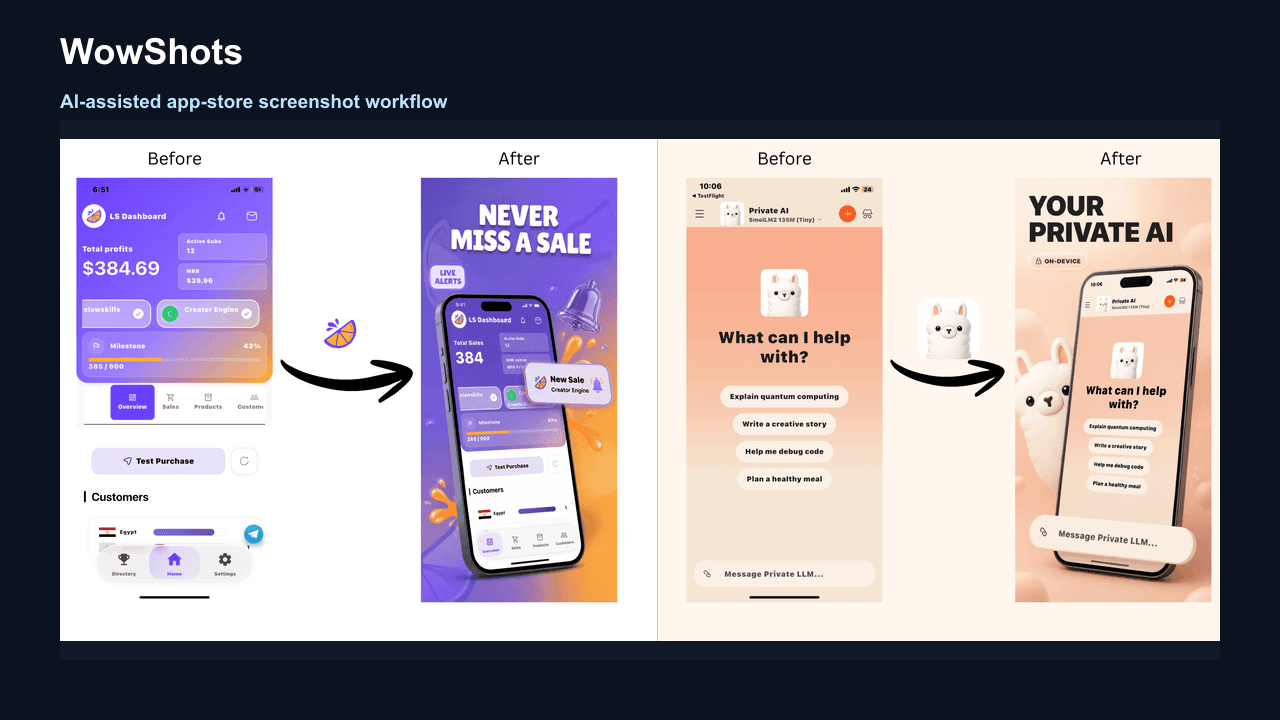
A translated caption pasted over an English app screen is not a finished localization. The caption, interface, sample data and store listing need to make sense together for the person viewing them.
Use this checklist to prepare one locale at a time for the App Store and Google Play. It covers the work that tends to get missed: choosing markets you can support, adapting the message, checking the app UI and keeping every exported set traceable.
1. Choose a locale you can support
Start with evidence you already have: product-page visits, installs, support requests, waitlist signups or launch plans for a specific market. A search result can show that people publish guides about a topic, but it does not prove demand for your app in that market.
Name the locale precisely. Brazilian Portuguese and European Portuguese are not interchangeable deliverables. The same applies to Spanish variants, English variants and Chinese scripts. Record the language-region code used by the store console so filenames and review notes match the destination.
Do not let the screenshots imply that the whole app is localized when only the listing is translated. If the product still opens in another language, decide whether that experience is acceptable before you publish localized creative.
2. Build a source inventory before translating
Create a small table for each screenshot in the current set. This prevents a translator or designer from working from an outdated export.
| Track | What to record |
|---|---|
| Source | Current app screen, caption and editable design file |
| Destination | Store, locale, device and orientation |
| Review | Translator or reviewer, status and review date |
| Export | Pixel dimensions, file name and published version |
Freeze the source copy for the batch before translation starts. If the English headline changes halfway through, flag every locale affected by that change rather than quietly mixing versions.
3. Localize the message, not the word count
Give the translator context for each frame: the user outcome, the feature on screen and any character or line limit in the layout. A literal translation can be accurate and still sound unnatural or overflow the design.
Leave room for expansion. Check accents, punctuation, font coverage and line breaks at the final store-preview size. For right-to-left languages, review the reading order, alignment, directional icons and the app UI itself. Mirroring a layout mechanically can reverse elements that should stay fixed.
Keep claims as specific as the source. Do not turn “track weekly spending” into a broader promise just because the broader wording fits the artboard.
4. Capture the real localized app experience
Switch the app to the intended language and capture current screens. Check dates, currencies, decimal separators, measurements, names and notification text. Remove personal information and developer test data.
If a feature is unavailable in the target market, replace that screen or state the limitation clearly. If the product is only partly localized, avoid a sequence that makes unsupported sections look translated.
Ask a fluent reviewer to compare the caption with the interface beneath it. The two should tell the same story. Then inspect the image on a phone; text that looks comfortable at full canvas size may be unreadable in a store listing.
5. Export a complete device and locale matrix
List every required combination before exporting: store, device, orientation and locale. Keep one predictable filename pattern, such as locale-device-position-version. Do not treat an artboard name as proof that the file has the correct dimensions.
Apple and Google can change their requirements, so verify the current rules before upload. Use Apple's screenshot specifications and Google Play's preview asset guidance as the source of record.
Check the exported files, not only the editor:
- pixel dimensions and file format;
- image order and orientation;
- caption legibility at preview size;
- consistent localized UI and sample data;
- no clipped text, missing glyphs or unintended personal information.
6. Upload the localized assets to each store
In App Store Connect, add or select the localization, then review the screenshots for every supported platform. Apple notes that when you add a language, the localization initially uses the primary language's screenshots. Uploading translated metadata alone is therefore not a reliable check that localized images are live. Follow Apple's localization instructions.
In Play Console, add the target language and its localized graphic assets to the store listing. Google's localization guidance treats text translations and localized graphic assets as separate parts of the listing. It also distinguishes language localization from country-targeted custom store listings. Follow the current steps in Google's translation and localization guide.
Preview every locale inside the relevant console. Check which assets the store actually shows rather than assuming a successful upload means the correct sequence is attached.
7. Run a native-language QA pass
Give the reviewer the final exported images or store preview, not only a copy deck. Ask them to check meaning, tone, truncation, cultural fit and the relationship between caption and screen.
A useful final pass answers five questions:
- Does every caption sound natural in this locale?
- Does the app screen support the claim above it?
- Are dates, currencies and sample names appropriate?
- Is the reading order clear on a phone?
- Is the uploaded order the same as the approved order?
Fix the source file and re-export when something is wrong. Avoid one-off edits to a final PNG that leave the editable design out of sync.
8. Measure and maintain each locale
Record the publish date, locale, asset version and reason for the change. Compare product-page performance over a sensible period or use a supported store-listing experiment when appropriate. A before-and-after result is not proof that screenshots caused the change; campaigns, seasonality, pricing and product releases can move the same metrics.
When the interface changes, search the source inventory for every affected screen. Updating only the primary language is how localized listings drift into old UI and broken promises.
Prepare the next localized set
Use the app screenshot launch checklist to review the story and the screenshot sizes guide to verify exports. When the copy and source captures are ready, use the WowShots App Store screenshot generator to create the base assets for each reviewed locale. WowShots uses one-time paid credit packs with no recurring subscription; check the current pricing before purchasing.
Useful WowShots tools
Move from research to production with the tool that matches your next step.