App Screenshots for App Store: ASO Guide
Plan App Store screenshots that explain your app clearly. Learn the current Apple requirements, sequencing principles, and review checklist.
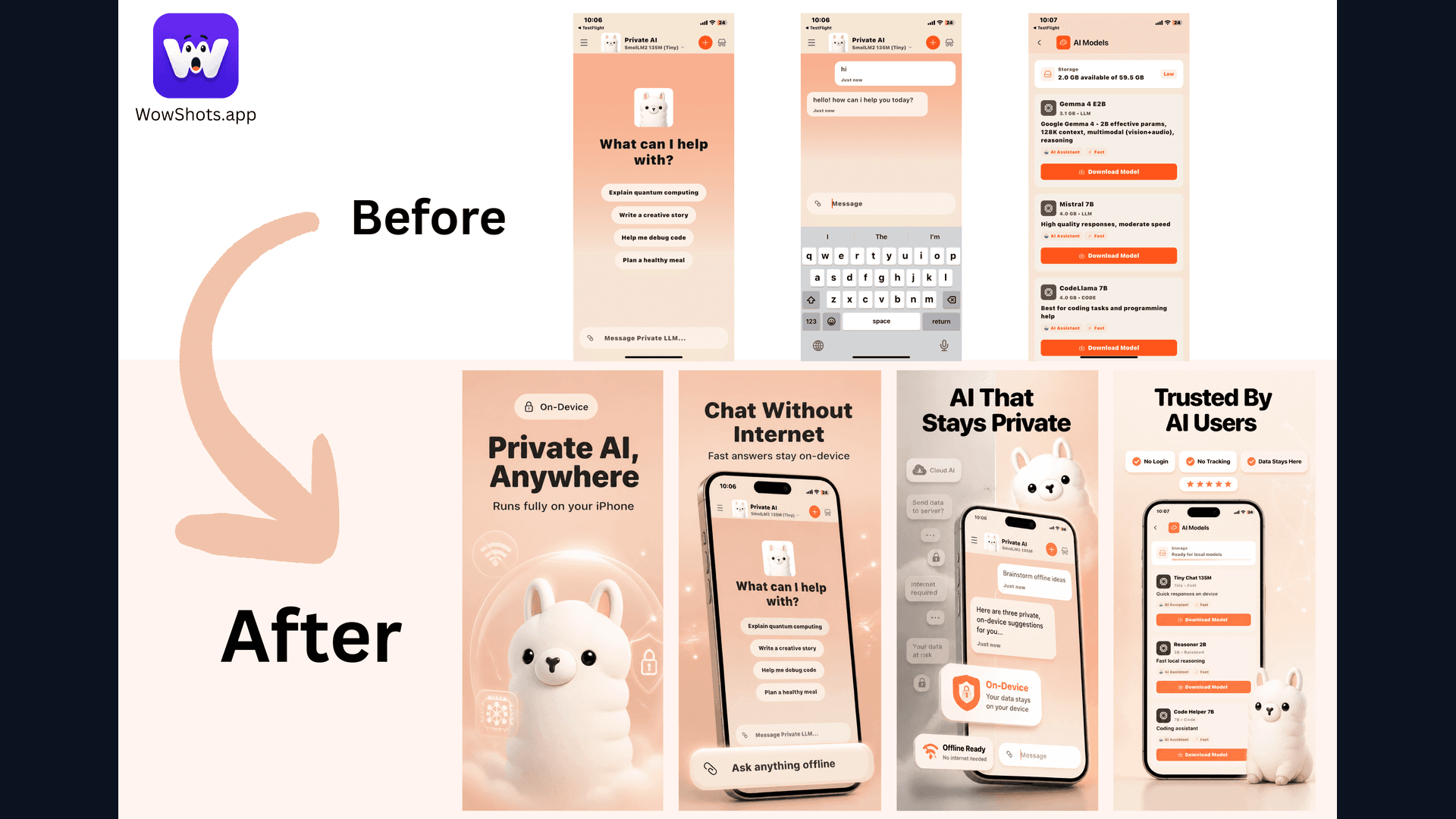
When users discover an app in the App Store, screenshots are one of the first opportunities to explain what the product does. App screenshots for App Store should make the value proposition easy to understand while accurately representing the current app.
This guide covers the current Apple requirements, practical sequencing ideas, and a preflight checklist. Always verify the final upload against Apple's screenshot specifications, because accepted device targets can change.
Why Your App Store Screenshots Are Failing
Treat screenshots as both a submission requirement and a product explanation. Raw captures can be useful, but a sequence with clear captions, consistent framing, and a logical order usually communicates the product faster than a collection of unrelated screens.
A practical starting point:
- Put the main benefit in the first screenshot.
- Make the next two screenshots explain how the product delivers that benefit.
- Keep important copy readable when the gallery is viewed at a small size.
App Store Screenshot Requirements (2026)
Before you design, you must meet Apple's strict technical guidelines.
Current Apple requirements
Apple accepts one to ten screenshots in JPEG, JPG, or PNG format, without alpha channels or transparency. Exact dimensions depend on the device display target. Common targets include 1320 × 2868 or 1290 × 2796 for large iPhone displays, 1284 × 2778 for the 6.5-inch target, and 2064 × 2752 or 2048 × 2732 for large iPad targets. See the complete Apple device matrix before exporting.
Key Rules to Follow:
- Format: JPEG, JPG, or PNG with no alpha channel or transparency.
- Quantity: One to ten screenshots per device target.
- Orientation: Portrait is standard for most apps; Landscape is best for games.
- App Previews: App previews are optional; check Apple's current product-page guidance when planning them.
Best Practices for "App Screenshots for App Store"
To support high-intent discovery and help visitors understand the product, use these strategies:
1. The "First Screenshot" Rule
Your first screenshot should not be a "Welcome" screen or a logo. It must be a Value Proposition.
- ❌ *Incorrect:* "Welcome to FitnessPro"
- ✅ *Correct:* "Lose Weight in 15 Minutes a Day"
2. Use Bold, Readable Captions
Don't let the UI speak for itself. Use concise text overlays to explain the benefit, then check that they remain readable in thumbnail view. There is no universal character limit that guarantees performance, so test the copy against the actual layout.
3. Tell a Story Through Sequencing
Arrange your screenshots in a logical flow:
- Hook: The biggest problem you solve.
- Process: How the app works.
- Evidence: A real workflow, outcome, or product detail that supports the promise.
- Variety: Different features or UI modes (like Dark Mode).
4. Optimize for the viewing context
Check the gallery at thumbnail size and on both light and dark device settings. Keep the product UI prominent, maintain contrast, and avoid styling that makes the interface look different from the real app.
How to Create Professional Screenshots in Minutes
Designing these manually in Figma or Photoshop can take time. Tools like WowShots can help create a first draft of the sequence:
- Layout direction: Start with a consistent visual system for the set.
- Benefit-led copy: Turn product context into concise caption ideas.
- Platform workflow: Plan separate iPhone, iPad, and Android directions where needed.
- Human review: Verify the final UI, claims, dimensions, and store rules before upload.
FAQ: App Screenshots for App Store
How many screenshots should I use?
Use as many of the available slots as you need to explain the product without repeating yourself. Put the most important information first and remove frames that do not add a distinct benefit or piece of evidence.
Do I need a screenshot for every iPhone size?
Not necessarily. Apple can scale accepted screenshots for compatible devices, but App Store Connect still determines which display targets your app needs. Check the current device matrix instead of assuming one large canvas covers every case.
Can I include my app icon in screenshots?
It's usually redundant because the icon is already visible right next to the screenshots. Use that space for feature highlights instead.
Are App Store screenshots different from Google Play?
Yes. Google Play is more flexible with sizes but stricter on "promotional text" in some regions. Apple focuses heavily on UI accuracy.
How often should I update my screenshots?
Update them when the UI, positioning, target audience, or core value proposition changes. If you run a store experiment, document the variant and the result before deciding what to keep.
Conclusion
Mastering your app screenshots for App Store is a continuous process of testing and refinement. Start with a clear value proposition, follow the current Apple size requirements, and use AI tools like WowShots to create a reviewable first draft without losing control of the final design.
Ready to improve your App Store screenshot workflow? [Generate a first draft with WowShots.](/)
Useful WowShots tools
Move from research to production with the tool that matches your next step.